Last Change: 2025-08-27 #dba #JT
 sphe_add_field_geometry
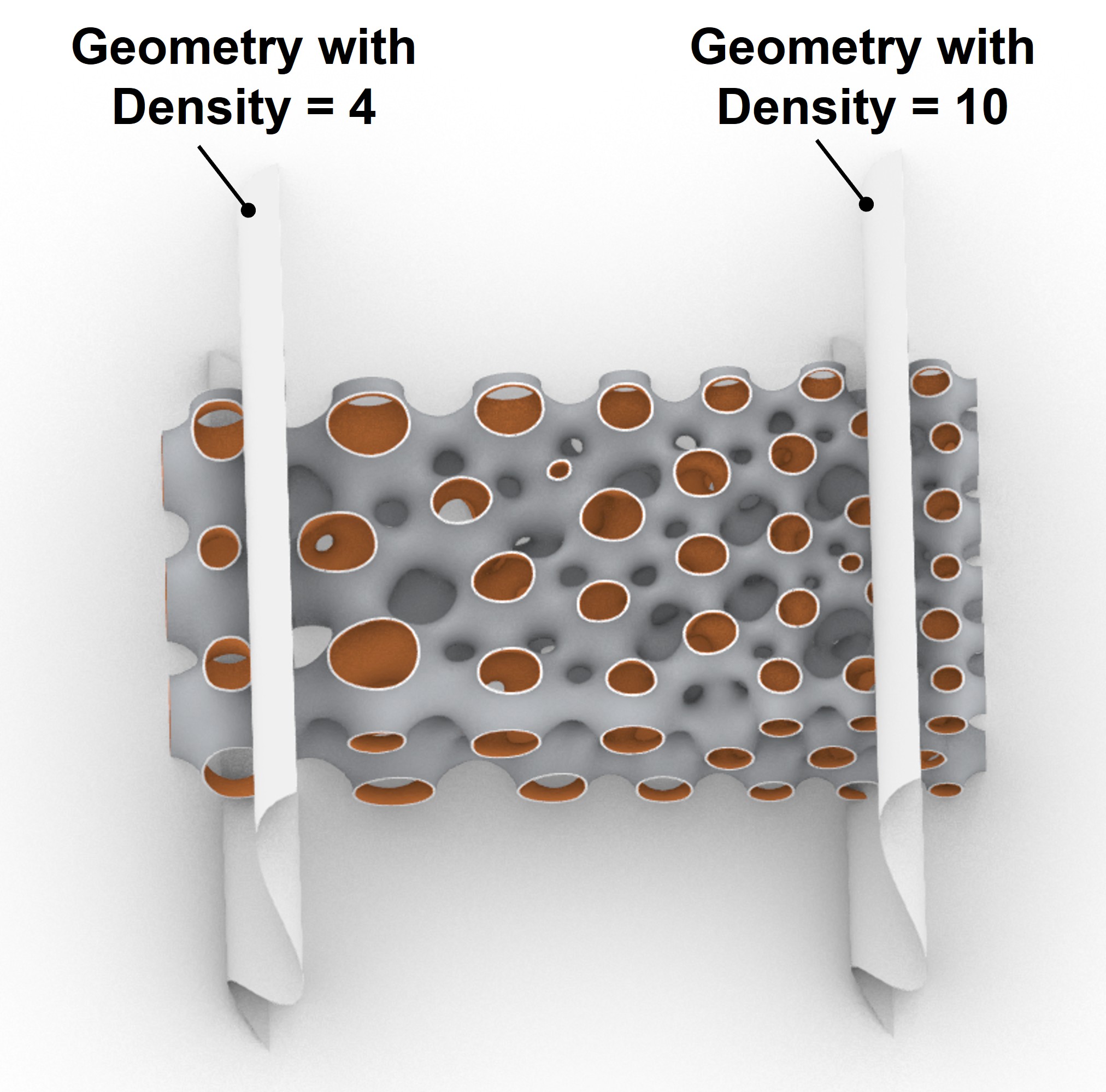
The sphe_add_field_geometry tool is an advanced version of the sphe_add_field_point tool, allowing you to modify any field parameter for more complex cases. With sphe_add_field_geometry, you can define complex geometries as contours of specific field values. In the example below, two complex surfaces are assigned different density values, resulting in a clear density variation between the two defined geometries.
Usage
Adds a Field Geometry to the project. A field geometry is essentially a function that is calculated using a particular geometry in space.
Double click a field geometry or edit its value using the spherene inspector :
Workflow
The general steps include:
-
Create the geometry meshes to which you will assign field values.
-
Click the tool button
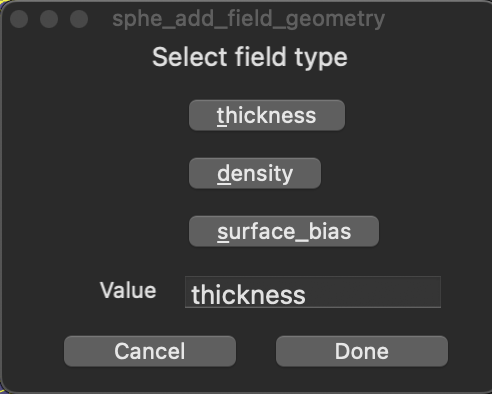
. In the pop-up window (for Mac users) or the command line (for Windows users), select the field parameter you want to modify and enter a new value. Then, click the geometry to assign it the specified field value. You can also modify the field values later in the Spherene Inspector.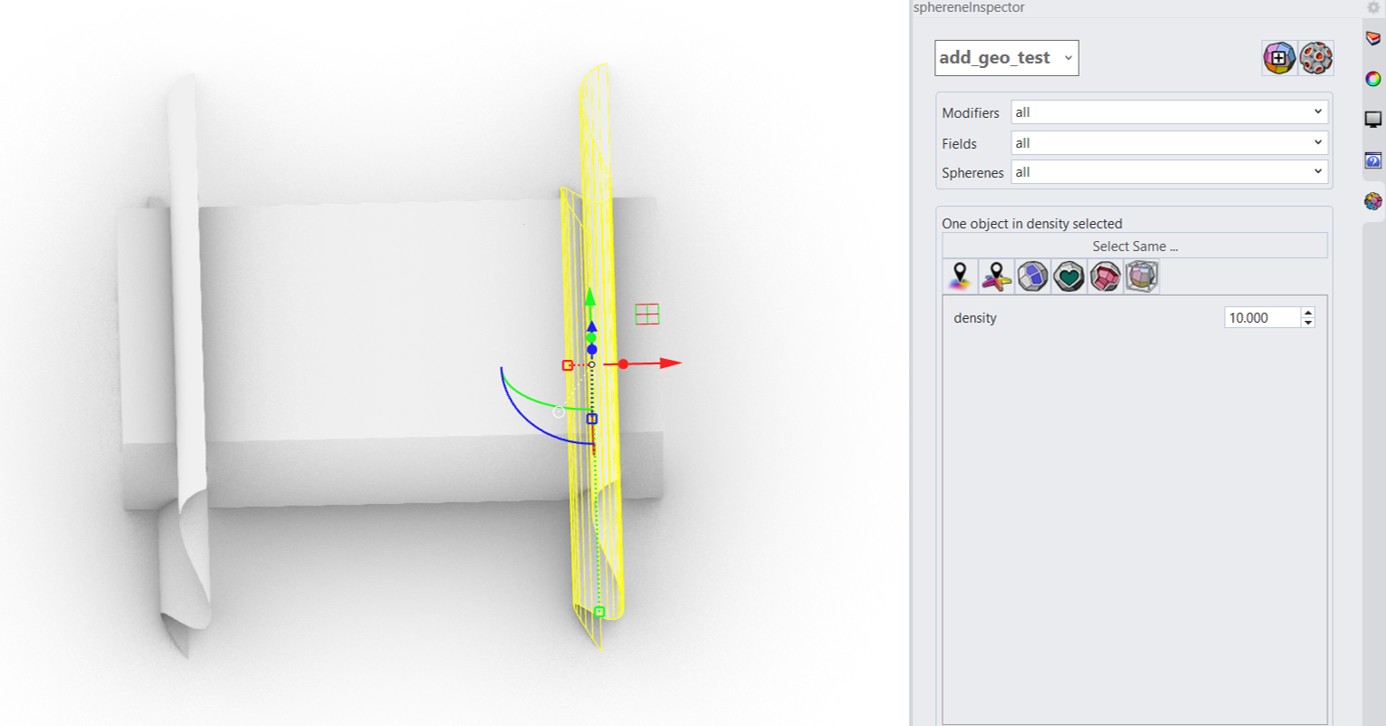
-
You can repeat step 2 to add more geometries or modify additional fields.
-
Click the compute button
 , select Solid Surface, and start the computation.
You can download this example file here.
Parameters
- Type: Density, Thickness, Surface Bias
- Value: Variable based on Type
- Position: Place and position geometry in 3D viewport
Density [%], Thickness [mm], Surface Bias [±1]
Density
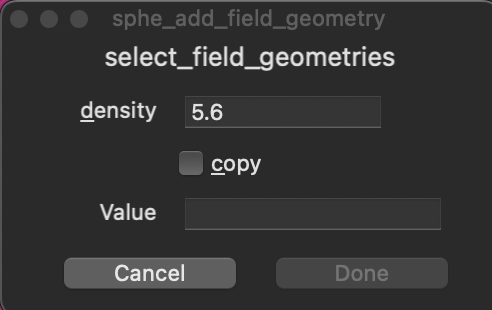
| Attribute | Value | Default | Unit |
|---|---|---|---|
| Color | Cyan | ||
| Range | 1 < | 5.6 | Volume Fraction |
Thickness
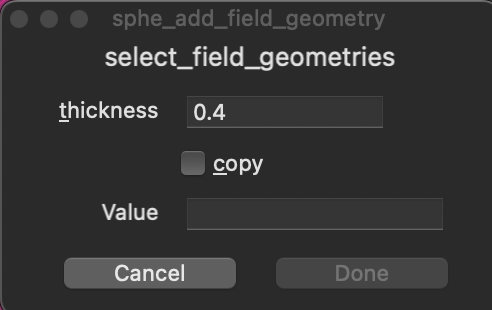
| Attribute | Value | Default | Unit |
|---|---|---|---|
| Color | Magenta | ||
| Range | 0.1 < | 0.4 | mm |
As long as you do not have a thickness field point set, the DRT acts as wall thickness by default. You can set the DRT in the compute dialogue
Surface Bias
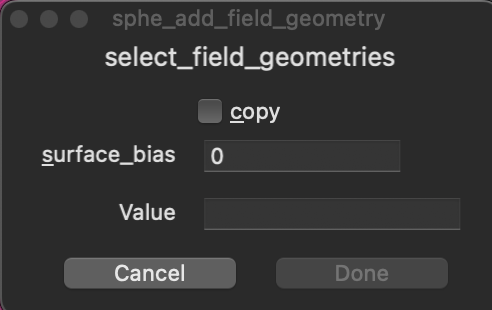
| Attribute | Value | Default |
|---|---|---|
| Color | Yellow | |
| Range | -1 to 1 | 0 |
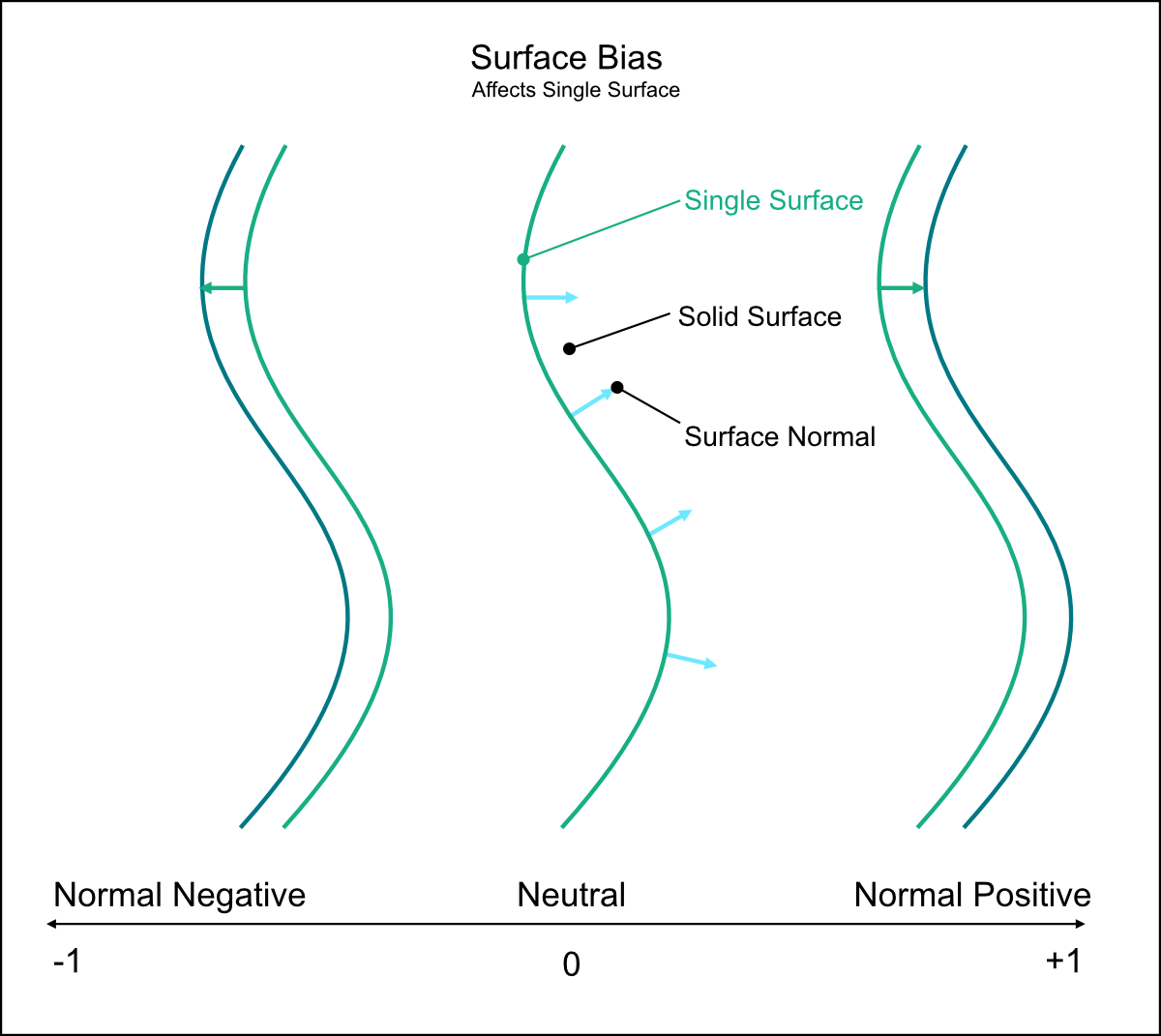
Shifts the Single Surface, minimal surface, from its ideal position to the negative or positive of its normal.
Scatter Vector 1
| Attribute | Value | Default | Unit |
|---|---|---|---|
| X, Y, Z | non-zero vector | (0,0,1) | |
| W | 0 ≤ | 0 | mm |
The introduction of scatter vectors controls the local stretching of the ADMS or flow ADMS. The (X, Y, Z) components are normalized and define the direction of the scatter vector. W defines the magnitude of the scatter vector, measured in millimeters.
Scatter Vector 2
| Attribute | Value | Default | Unit |
|---|---|---|---|
| X, Y, Z | non-zero vector | (0,0,1) | |
| W | 0 ≤ | 0 | mm |
Scatter Vector 2 has the same function as Scatter Vector 1. When combined with Scatter Vector 1, it allows the geometry to be stretched in two different directions with different magnitudes at each point.
Flow Direction
| Attribute | Value | Default | Unit |
|---|---|---|---|
| X, Y, Z | non-zero vector | (0,0,1) | |
| W | 0 ≤ | 0 | 10% |
When a flow direction is defined, a Flow ADMS is generated. The (X, Y, Z) components are normalized and define the direction of flow. W defines the magnitude of the flow direction. When W=0, an isotropic Flow ADMS is generated. Otherwise, a directional preference following the (X, Y, Z) direction is applied. For example, W=7 indicates that 70% of the Flow ADMS surface tends to follow the (X, Y, Z) direction.