Last Change: 2026-01-14 #JT
Quickstart First Time Use
All spherene commands can be used through Rhino command line. Meanwhile, we provide two convenient UI tools for the users to introduce new functions or modify parameters easier. Therefore, before you start the first case, we recommend you first setup these UI tools: Spherene Toolbar and Spherene Inspector.
Toolbar
In the toolbar, you can access the commonly used spherene functions such as create project or set up spherene parameters by clicking on different buttons.

To activate the toolbar:
- Enter
Toolbarin the command line. - Select spherene from the dropdown menu
- Check the spherene checkbox
Inspector
In additional to the functions that the toolbar offers, the inspector grants you more possibilities in the project management and parameter visualization/modification:
Workflow of Spherene: First case
A general workflow of a spherene computation includes three steps:
-
Create a Spherene project and assign an envelope
-
set up spherene related parameters such as thickness and density (details see Command Reference);
-
define output format and computation setting, then start the compute. An black sdk window should pop up which tells the computational progression and messages. Each computation consumes a certain number of credits from your account (details see Credit Rules).
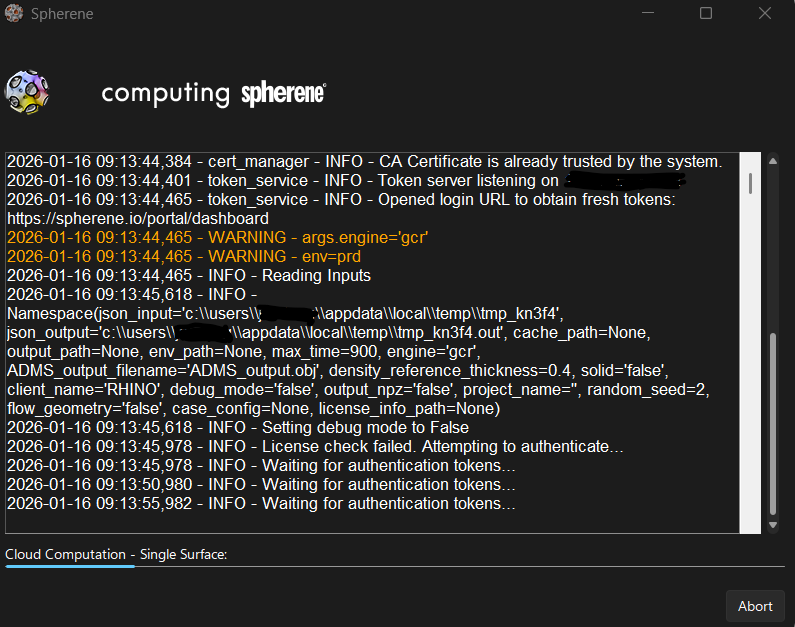
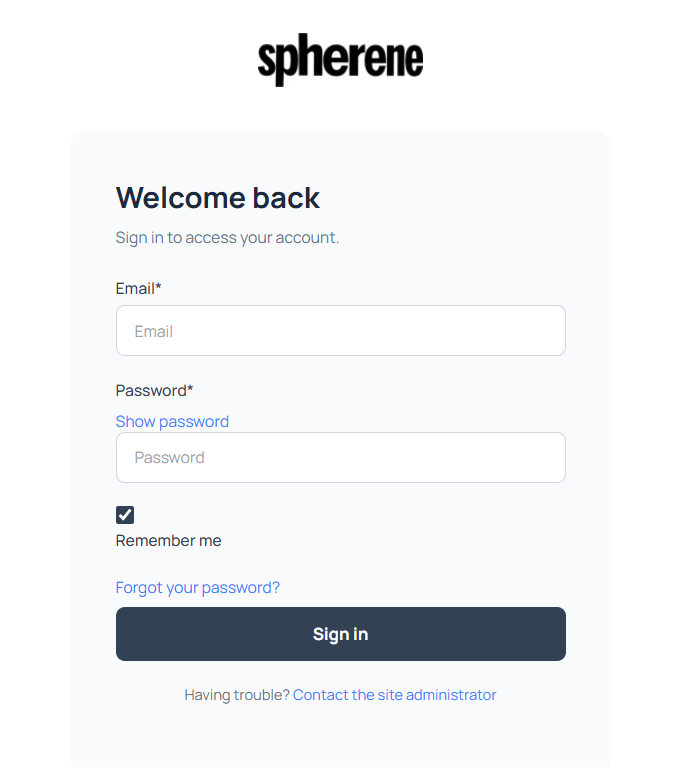
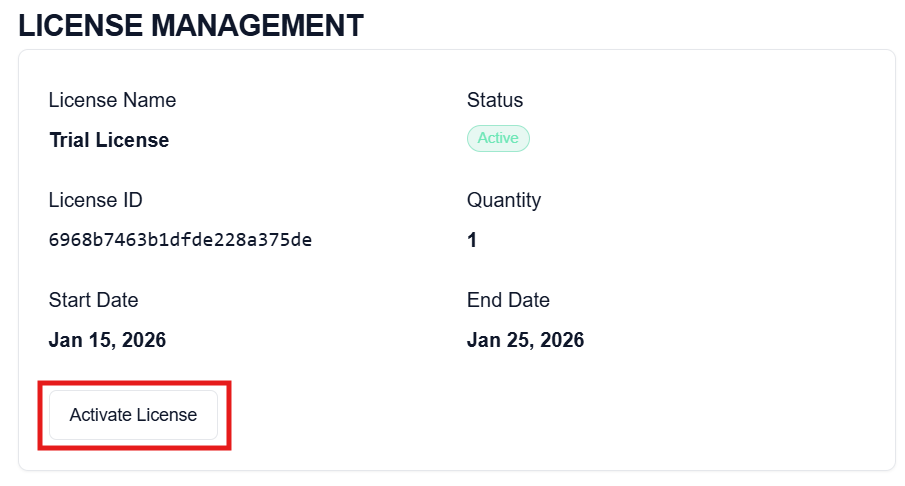
In the first time use or in a new PC, the dashboard login page will automatically pop up with the sdk window. Please login your account and activate your license in the current PC.
 tip
tipOnce it is done, please restart Rhino to ensure that all features are correctly loaded based on your license. The license file will be saved locally and be valid for two months. If your license file is out of date, you will receive the following pop-up windows:
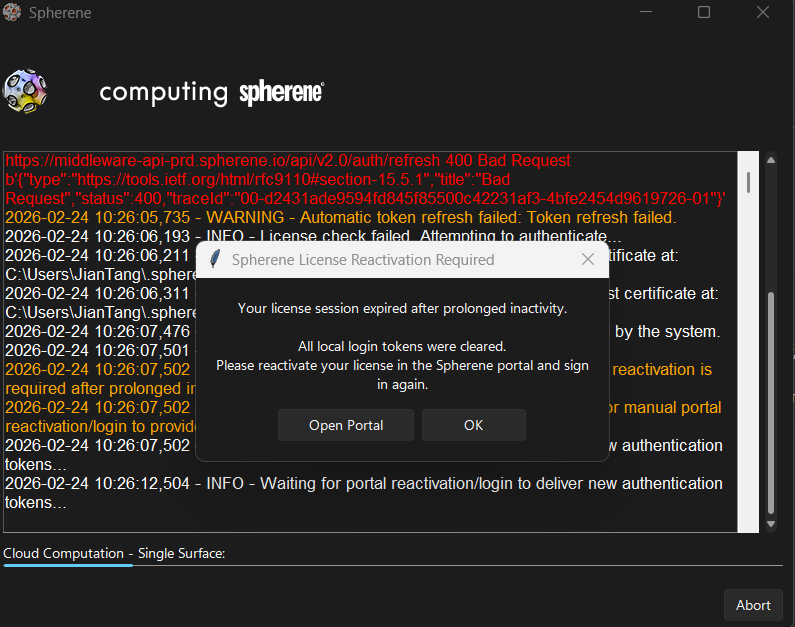
Please then click on "Open portal" and then re-activate your license again in the license management section of your portal dashboard, as shown above.